It fuses every element that shares a material into one object. All the walls with the same paint become a single object. All the glass in the building becomes a single object. Autodesk's own description is plain about it: each distinct material name from Revit® becomes one 3ds Max® object.
It is offered as an optimisation, and as an optimisation it works — object counts drop sharply. What it costs is element identity, and almost everything downstream depends on that.
What you lose the moment you choose it
| Lost | Consequence |
|---|---|
| One object per element | You cannot select a single wall, door or panel. You select every element that shares its material. |
| Meaningful names | Objects are named after materials, not after what they are. |
| Per-element material assignment | Assigning a material to one element means detaching it from the fused object first. |
| Stable identity across reloads | The grouping key is a material name. Change a material in Revit and object membership changes with it. |
The last row is the one that hurts later
When the grouping key is a material name, the objects in your scene are defined by a property the BIM team edits routinely and without telling you. Rename a Revit material, split one material into two, merge two into one — each of those reshuffles which geometry belongs to which object on the next reload, and the work attached to those objects goes with the reshuffle.
It also removes the Revit data
This part is documented by Autodesk and is easy to miss, because nothing announces it. With Combine By Revit Material selected, Revit metadata — family and category — does not appear in the 3ds Max Scene Explorer at all.
The same applies to three other presets:
| Preset | Revit family and category visible in Scene Explorer |
|---|---|
| Combine By Revit Material | No |
| Combine By Revit Category and Revit Material | No |
| Combine By Revit Family Type and Revit Material | No |
| As One Object | No |
So the cost is not only that you cannot select one wall. It is that the scene no longer knows which objects were walls. Anything downstream that depended on category or family — selection sets, scripted operations, sanity checks against the model — has nothing left to work from.
Metadata does survive when each Revit element arrives as its own object, where it can be inspected through the Revit Property Explorer under Tools and All Global Explorers, carrying category, family, level and type. Autodesk notes that this route produces larger files. That is the trade being made: keep the data and carry the object count, or drop the object count and lose the data.
The trade only exists because repeated elements are arriving as copies. Where they arrive as instances instead, scene weight follows unique geometry rather than object count, and there is nothing to buy by fusing.
The displacement problem
Fusing elements also welds their geometry into a continuous surface. For anything that uses displacement, that is the difference between a clean result and a long fight: displacement follows the fused shell rather than the individual elements, and edges that used to be separate push into each other. Getting an acceptable render out of that state takes an amount of manual work that is out of all proportion to what was being optimised.
What Autodesk recommends instead
When geometry arrives offset or in the wrong place, Autodesk's own published guidance is to use Do Not Combine Entities. That is worth noting, because it is the platform vendor recommending against its own combining options for exactly the class of problem those options tend to create.
| Preset | What it does | Use when |
|---|---|---|
| Do Not Combine Entities | One object per Revit element. | Almost always, if you intend to work on the scene. |
| Combine By Revit Family Type | Groups by family type. | When you need fewer objects and family type is a grouping you can live with. |
| Combine By Revit Material | One object per material name. | A one-shot render where nobody will ever touch the scene again. |
If your scene is already fused
There is no clean unfuse. Detaching by element is manual and it does not restore names or the link's per-element tracking. In practice the honest options are to re-link the model with a different preset and rebuild, or to keep the fused scene for the one render it was made for.
Re-linking is usually the cheaper answer, and it is cheapest the earlier it is done.
The underlying issue
Every combining preset is a workaround for object count. It is worth asking why object count is a problem at all. If repeated elements arrive as instances rather than copies, scene weight follows unique geometry rather than object count, and fusing elements together stops being a trade anyone needs to make.
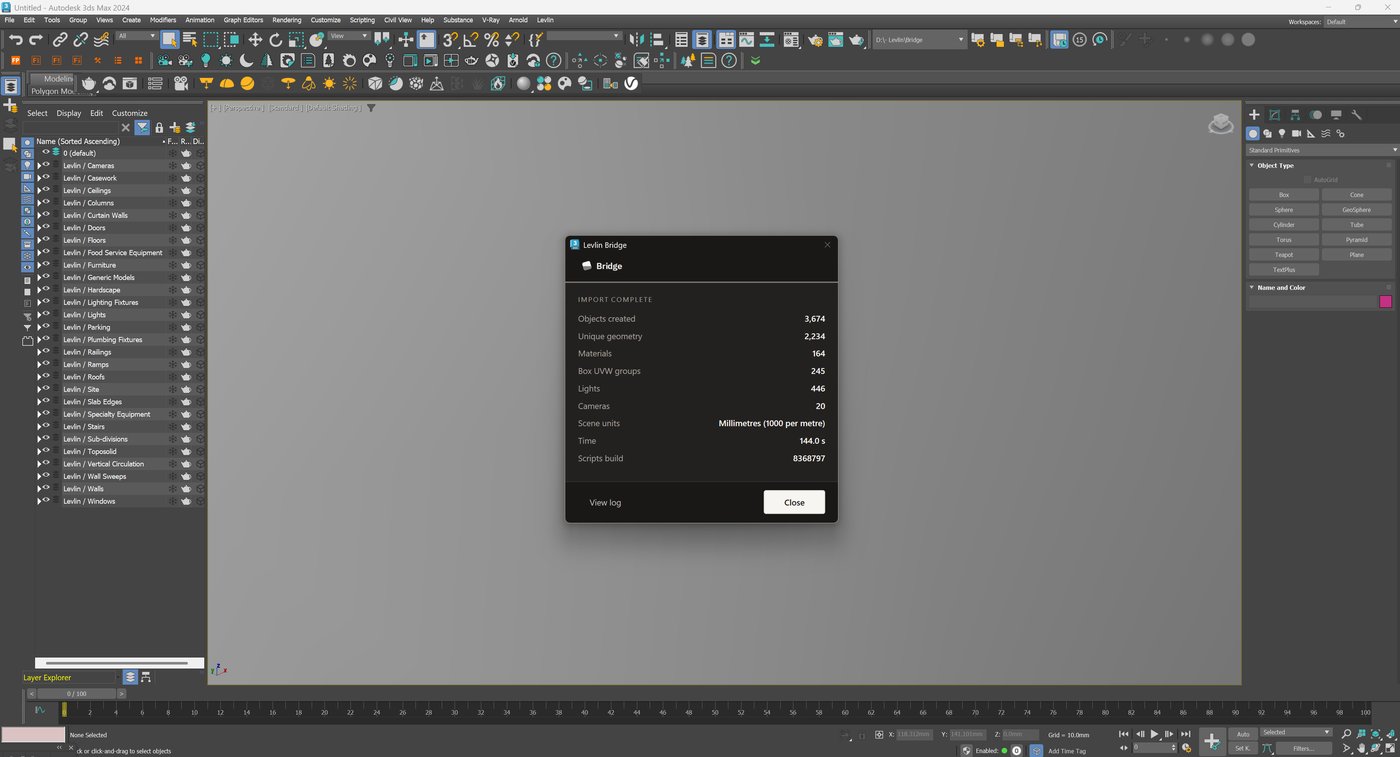
That is how Levlin Bridge handles it. Elements arrive whole, named and separately selectable, and repeated elements reference geometry already in memory. In one recorded run, 3,674 objects arrived from 2,234 unique geometries. Nothing is fused to get there.
Frequently asked
What does Combine By Revit Material do?
It merges every Revit element that shares a material into a single 3ds Max object. Each distinct material name from Revit becomes one object.
Why is that a problem?
It destroys element identity. You cannot select a single wall, objects are named after materials rather than what they are, and the grouping key is a property the BIM team edits routinely.
Does it cause problems with displacement?
Yes. Fusing elements welds their geometry into a continuous surface, so displacement follows the fused shell rather than the individual elements. Getting an acceptable result from that state takes a large amount of manual work.
What should I use instead?
Do Not Combine Entities, which gives one object per Revit element. Autodesk's own published guidance recommends it when geometry arrives offset or misplaced.
Can I undo it on a scene that is already combined?
Not cleanly. Detaching by element is manual and does not restore names or per-element tracking. Re-linking with a different preset is usually cheaper, and cheapest the earlier it is done.
Is there a way to avoid the object-count trade entirely?
Yes, if repeated elements arrive as instances rather than copies. Scene weight then follows unique geometry rather than object count, so there is nothing to optimise by fusing.
Related field notes
- How to get a 3ds Max model into Revit as a Mass family
- Which 3ds Max import formats can travel on to Revit?
- Blender to Revit: the FBX, OBJ, glTF and USD route through 3ds Max
- Rhino and Grasshopper geometry into Revit through 3ds Max
- How to get a SketchUp model into Revit as measurable elements
- Flat faces vs curved surfaces: what comes back from 3ds Max as a solid Mass, and what stays a mesh
- What can an architect do with a Mass that came back from 3ds Max?
- Do dimensions and tags survive when you pull again from 3ds Max into Revit?
- Why Levlin Bridge returns 3ds Max geometry to Revit as a Mass family, not a DirectShape
- Is there a plug-in that links Revit and 3ds Max in both directions?
- Why the Revit model arrives at the wrong scale in 3ds Max
- Why the Revit model appears twice in 3ds Max after a reload
- 3ds Max cannot link the Revit file? Four causes, in order
- Revit File Link or FBX for 3ds Max?
- Do Revit and 3ds Max versions have to match?
- What happens to deleted Revit elements in 3ds Max?
- Why modifiers and UVW break when a Revit link reloads
- Why “Keep material parameters on reload” doesn’t save your 3ds Max materials
- Does Datasmith move a Revit model into 3ds Max?
- Can Speckle sync Revit and 3ds Max?
- Is NVIDIA Omniverse still a Revit to 3ds Max route in 2026?
Levlin Bridge
Levlin Bridge is a Windows plug-in that moves geometry between Autodesk Revit and Autodesk 3ds Max in both directions. Push the model from Revit, pull it into 3ds Max, and push the geometry you changed back into Revit as real elements. Only the difference ever moves, so materials, modifiers and UVW stay exactly where you left them. Any Revit 2022–2027 works with any 3ds Max 2024–2027.
Levlin Bridge is in final testing and is not released. There is nothing to download yet. Leave your email and you get the 30-day trial the day it ships.