Matching the units on both sides does not guarantee the model arrives at the right size. That surprises people, because it looks like it should be the one thing that cannot go wrong. Set Revit® to metres, set 3ds Max® to metres, and the building still arrives at a scale nobody asked for.
The reason is that a unit setting is a display preference. It is not a promise about what a number in the file means.
What people actually report
From a Spanish-language archviz forum, and it is worth reading for the workaround rather than the complaint:
My Revit model is in metres, and when I import it into 3ds Max I configured metres too, and it became gigantic. The only solution I have found so far is that when I insert objects I scale them by 100000. This has never happened to me before and I do not know where my error is.
Two things in that report matter. The user did the correct thing — matched the units. And the workaround they landed on, scaling by a factor of a hundred thousand, is not a fix. It is a number found by trial that happens to cancel the error, applied by hand to every object, on every import.
Why matching units is not enough
Geometry crossing between two applications is a list of numbers. Whether the number 3.5 means three and a half metres, three and a half millimetres or three and a half feet is not carried by the geometry — it is carried by the agreement about the geometry, and that agreement is made at the boundary between the two applications, not in either one's preferences.
| What each setting actually controls | What it does not control |
|---|---|
| The Revit project units decide how a length is displayed to the person modelling. | They do not change what is written when the model is exported. |
| The 3ds Max system unit decides how a length is displayed and how the scene is measured. | It does not tell the importer how to read the incoming numbers. |
| The conversion at the boundary decides the scale that actually results. | This is the step nobody sees, and the one that goes wrong. |
Autodesk's own performance guidance for this transfer is an accidental confirmation that the step exists and costs something. Among its recommendations for making a slow Revit import faster is to set 3ds Max to feet so that the FBX importer does not have to perform unit conversion at all. If skipping the conversion is a documented optimisation, the conversion is a real operation with real behaviour — and anything with real behaviour can produce a real error.
Why the factor is so extreme
A hundred thousand is not a random number, and the size of it tells you what kind of mistake it is. Unit errors are compounding, not additive: metres to millimetres is a factor of a thousand, and a second misreading on top of the first multiplies rather than adds. That is why these failures are never subtle. The building is either the right size or it is a continent.
The practical consequence is that you notice immediately, which is the one merciful part. The cost is not a wrong render. It is the hour spent establishing that the settings were right all along.
What to check, in order
| # | Check |
|---|---|
| 1 | 3ds Max system unit setup, not just the display unit. These are two separate settings and only one of them is usually looked at. |
| 2 | Whether the FBX import dialog is performing a unit conversion, and which direction it thinks it is converting in. |
| 3 | Whether the Revit model was exported from a 3D view, since export behaviour differs from a plan view. |
| 4 | Whether an intermediate DWG step is involved, which introduces a third unit convention of its own. |
If all four are correct and the scale is still wrong, the disagreement is at the boundary and no setting inside either application will resolve it. That is the point at which people start scaling by a hundred thousand.
What removes the problem
The error can only occur where the receiving side has to infer what the incoming numbers mean. A transfer that states the scale explicitly, rather than leaving it to be inferred from two independently configured preferences, has nothing to get wrong.
Levlin Bridge converts by a fixed real-world factor. Same units on both sides arrive one to one; different units on the two sides arrive converted. There is no manual rescale step, because there is no inference to correct.
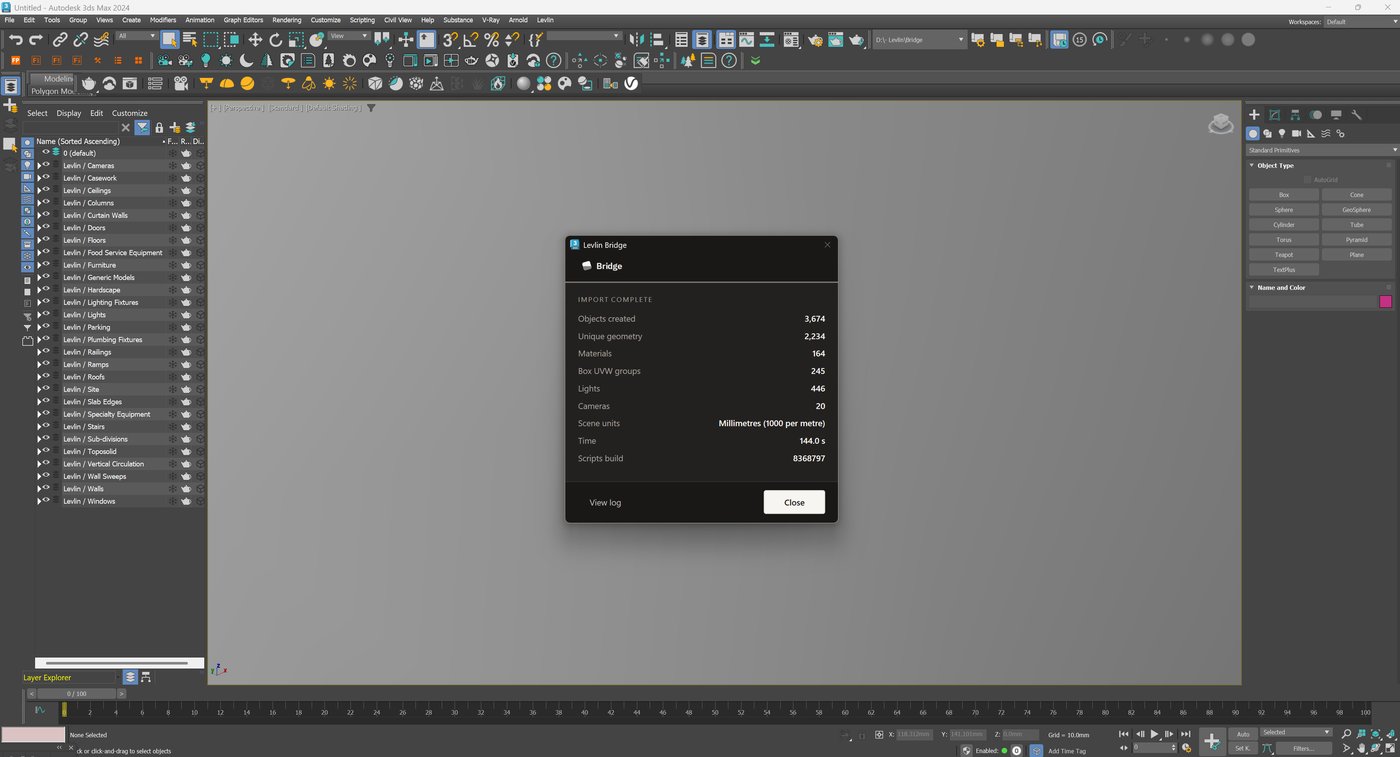
An honest boundary on that claim: this has been verified live on the millimetre case. We publish what we have tested and we say which case it was, rather than implying a matrix we have not yet run end to end.
The wider point is the one worth taking away. Scaling every imported object by a hand-found factor is not a workflow. It is a workaround for a conversation that never happened between two applications, repeated by hand on every revision.
Frequently asked
Why is my Revit model gigantic in 3ds Max when both are set to metres?
A unit setting is a display preference, not a statement about what the numbers in the transferred geometry mean. The scale is decided by the conversion at the boundary between the two applications, which is a separate step from either application's own units.
Is scaling every object by 100000 a real fix?
No. It is a factor found by trial that cancels the error, applied by hand to every object on every import. It corrects the symptom and has to be repeated on every revision.
Why is the error so large rather than slightly off?
Unit errors compound rather than add. Metres to millimetres is a factor of a thousand, and a second misreading multiplies on top of the first. These failures are never subtle, which is why they are caught immediately.
What should I check first?
The 3ds Max system unit setup rather than the display unit — they are separate settings. Then whether the FBX import is performing a conversion and in which direction, whether the export came from a 3D view, and whether an intermediate DWG step has introduced a third unit convention.
How does Levlin Bridge handle units?
It converts by a fixed real-world factor. Matching units arrive one to one, differing units arrive converted, and there is no manual rescale step because the receiving side is not inferring what the numbers mean. This has been verified live on the millimetre case.
Related field notes
- How to get a 3ds Max model into Revit as a Mass family
- Which 3ds Max import formats can travel on to Revit?
- Blender to Revit: the FBX, OBJ, glTF and USD route through 3ds Max
- Rhino and Grasshopper geometry into Revit through 3ds Max
- How to get a SketchUp model into Revit as measurable elements
- Flat faces vs curved surfaces: what comes back from 3ds Max as a solid Mass, and what stays a mesh
- What can an architect do with a Mass that came back from 3ds Max?
- Do dimensions and tags survive when you pull again from 3ds Max into Revit?
- Why Levlin Bridge returns 3ds Max geometry to Revit as a Mass family, not a DirectShape
- Is there a plug-in that links Revit and 3ds Max in both directions?
- Why the Revit model appears twice in 3ds Max after a reload
- 3ds Max cannot link the Revit file? Four causes, in order
- Revit File Link or FBX for 3ds Max?
- Do Revit and 3ds Max versions have to match?
- What happens to deleted Revit elements in 3ds Max?
- Why modifiers and UVW break when a Revit link reloads
- What Combine By Revit Material actually does to your model
- Why “Keep material parameters on reload” doesn’t save your 3ds Max materials
- Does Datasmith move a Revit model into 3ds Max?
- Can Speckle sync Revit and 3ds Max?
- Is NVIDIA Omniverse still a Revit to 3ds Max route in 2026?
Levlin Bridge
Levlin Bridge is a Windows plug-in that moves geometry between Autodesk Revit and Autodesk 3ds Max in both directions. Push the model from Revit, pull it into 3ds Max, and push the geometry you changed back into Revit as real elements. Only the difference ever moves, so materials, modifiers and UVW stay exactly where you left them. Any Revit 2022–2027 works with any 3ds Max 2024–2027.
Levlin Bridge is in final testing and is not released. There is nothing to download yet. Leave your email and you get the 30-day trial the day it ships.